
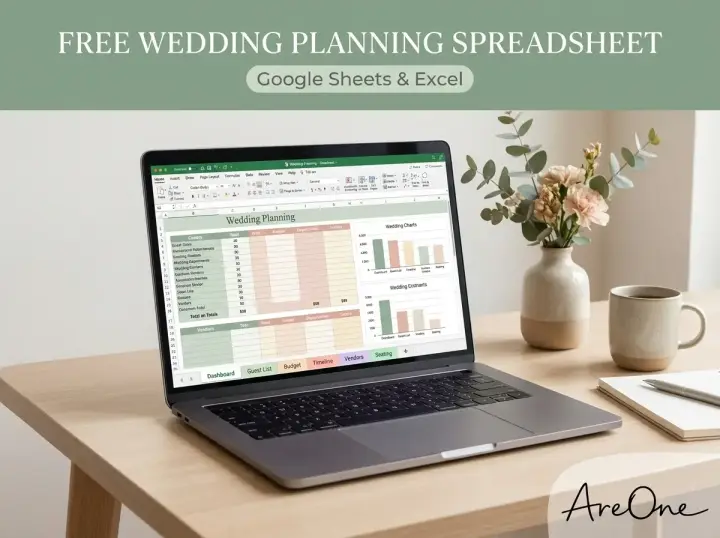
TL;DR: This free wedding planning spreadsheet has six linked tabs (Overview, Budget, Guests & RSVP, Vendors, Timeline and Seating), and below you get every column header, sample row and formula so you can build it in Google Sheets or Excel in about half an hour.
A wedding planning spreadsheet is still the most flexible planning tool around. It costs nothing, both partners can edit it, and it bends to fit your wedding instead of the other way round. Most free templates online hand you a file and stop there. This wedding planning spreadsheet shows how each tab feeds the next, so a signed vendor contract updates your budget and an RSVP updates your seating count without retyping.
One honest note first: we have not published a downloadable file yet. Instead, the full template is written out on this page, tab by tab, so you can recreate it exactly and own every formula.
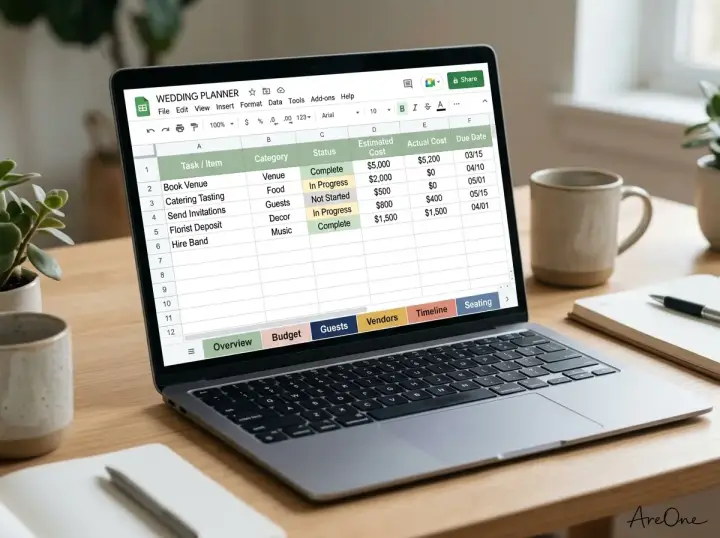
What’s in the free template (tab-by-tab preview)
The wedding planning spreadsheet uses six tabs. Name them exactly as shown, because the formulas refer to the tab names. The table below shows what each tab tracks and which other tab it talks to.
| Tab name | What it tracks | Connects to |
|---|---|---|
| Overview | Totals, money owed, RSVP counts, open tasks | Reads every other tab |
| Budget | Estimated vs actual cost per category | Pulls contract totals from Vendors |
| Guests | Households, contact details, RSVP replies | Feeds Seating and Overview |
| Vendors | Contracts, deposits, due dates | Feeds Budget and Overview |
| Timeline | Planning tasks and day-of schedule | Feeds Overview |
| Seating | Tables, capacity, seats left | Reads Guests |
This scale is realistic. The Knot 2026 Real Weddings Study reports an average guest count of 117 and an average of 13 wedding professionals hired. That is a lot of names, contracts and payment dates to keep straight in your head.
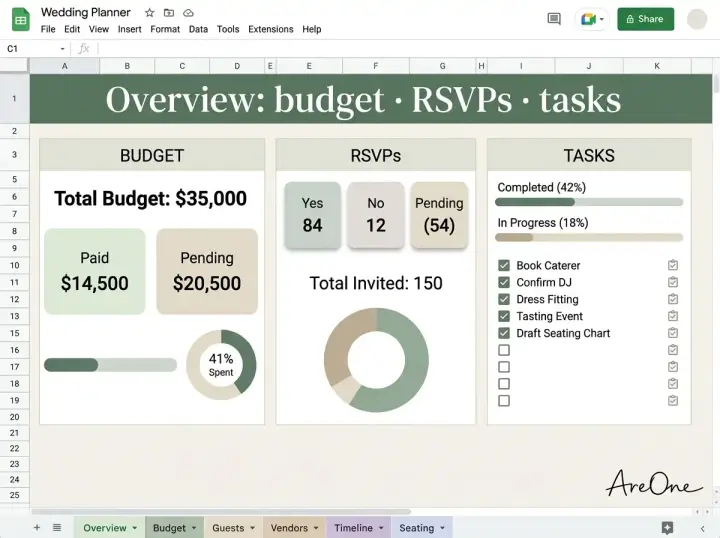
The Overview tab: your one-glance dashboard
Put labels in column A and these formulas in column B. You will rarely type anything here; it simply answers the questions you ask most often.
| Label (column A) | Formula (column B) |
|---|---|
| Estimated budget | =SUM(Budget!B2:B40) |
| Contracted so far | =SUM(Budget!C2:C40) |
| Still owed to vendors | =SUM(Vendors!H2:H60) |
| Due in next 30 days | =SUMIFS(Vendors!H2:H60,Vendors!I2:I60,"<="&TODAY()+30,Vendors!H2:H60,">0") |
| Invited seats | =SUM(Guests!F2:F400) |
| Guests attending | =SUM(Guests!J2:J400) |
| Households yet to reply | =COUNTIF(Guests!I2:I400,"Pending") |
| Open tasks | =COUNTIFS(Timeline!B2:B100,"<>",Timeline!E2:E100,"<>Yes") |
How to copy it to Google Sheets or download for Excel
Because this wedding planning spreadsheet lives on this page, you build your own copy once and then keep it anywhere you like. It takes about 30 minutes.
Wedding planning spreadsheet Google Sheets setup
- Open a blank sheet at sheets.google.com and name it “[Partner A] & [Partner B] Wedding”.
- Right-click the tab at the bottom, choose Rename, and create six tabs: Overview, Budget, Guests, Vendors, Timeline, Seating.
- Type the column headers from each table below into row 1 of the matching tab, starting in column A.
- Paste the formulas into row 2, then drag the small square at the cell’s corner down to fill the rows below.
- Select row 1, then View > Freeze > 1 row, so headers stay visible as lists grow.
- Add dropdowns with Data > Data validation (for example Pending, Yes, No in the RSVP column).
Using it as a wedding planner Excel template
To turn it into a wedding planner Excel template, build it in Google Sheets and choose File > Download > Microsoft Excel (.xlsx). Or build it directly in Excel: the headers and formulas are identical, freeze panes lives under View > Freeze Panes, and dropdowns live under Data > Data Validation. Every function used here (SUM, SUMIF, SUMIFS, COUNTIF, COUNTIFS, IF, TODAY) works the same in both programs.
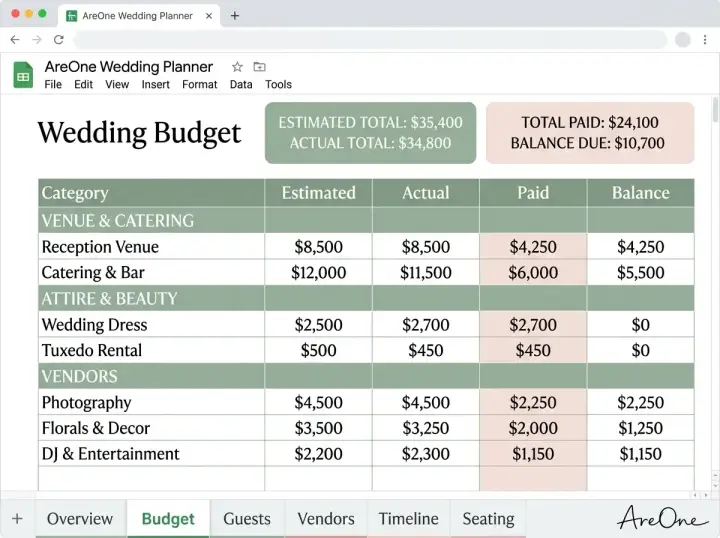
Budget tab: categories, estimated vs actual, deposits
This wedding budget spreadsheet template works by category, not by receipt. You type your estimate once, and the actual cost fills itself from the Vendors tab as you sign contracts. The figures below are placeholders, not typical prices. How to split your total across categories is a separate question, covered in our wedding budget breakdown guide.
| A: Category | B: Estimated | C: Actual (contracted) | D: Paid so far | E: Balance | F: Over / under |
|---|---|---|---|---|---|
| Venue | [amount] | =SUMIF(Vendors!$B$2:$B$60,A2,Vendors!$D$2:$D$60) | =SUMIF(Vendors!$B$2:$B$60,A2,Vendors!$G$2:$G$60) | =C2-D2 | =C2-B2 |
| Photography | [amount] | same formula, row 3 | same formula, row 3 | =C3-D3 | =C3-B3 |
| Invitations | [amount] | same formula, row 4 | same formula, row 4 | =C4-D4 | =C4-B4 |
The SUMIF in column C adds up every vendor whose Service matches the category name, so spell categories the same way on both tabs. A positive number in column F means you are over your estimate. For purchases with no vendor row, such as rings bought online, simply type the amount over the formula.
In the wedding budget spreadsheet template, add a totals row under your last category with =SUM(B2:B40), and copy it across columns C to F. Then use conditional formatting to turn column F red when the value is greater than 0.
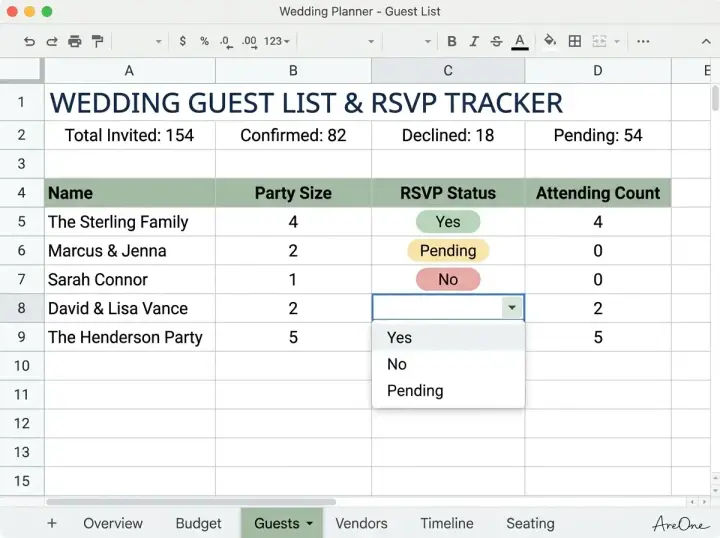
Guest list & RSVP tab
Your wedding guest list spreadsheet uses one row per household, not per person. That keeps couples and families together and makes the Party size column meaningful.
| A: Name | B: Email | C: Phone | D: Group | E: Tags | F: Party size | G: Notes | H: Address | I: RSVP | J: Attending | K: Table |
|---|---|---|---|---|---|---|---|---|---|---|
| [Guest Name] & [Partner] | [email] | [phone] | Family A | ceremony | 2 | Vegetarian x1 | [street, city] | Yes | 2 | 3 |
| [Guest Name] | [email] | [phone] | Work | reception | 1 | [street, city] | Pending |
In a wedding guest list spreadsheet, Party size is how many seats you offered; Attending is how many said yes. Never mix the two, because the gap between them is your real headcount. If you still need mailing details, our tips on collecting guest addresses without stress help you fill column H fast.
Recommended ReadingCrafting the Perfect 12-Month Wedding Planning Timeline: A Stress-Free Guide →From wedding guest list spreadsheet to RSVP tool
Browse invitation layouts that fit your plan.
Compare layouts for schedules, travel details, guest guidance, and RSVP information before choosing one for your invitation.



Here is the link most templates miss. Columns A to G are deliberately named Name, Email, Phone, Group, Tags, Party size and Notes, which are the column names AreOne’s guest import reads from a CSV file. Export the tab with File > Download > Comma-separated values (.csv), import it into your AreOne guest list, and replies arrive online instead of by text message. When you need the final numbers back, AreOne exports a CSV you can paste into this tab.
Whichever route you choose, these RSVP tracking tips help you chase the Pending rows politely.
Vendor tracker and payment schedule
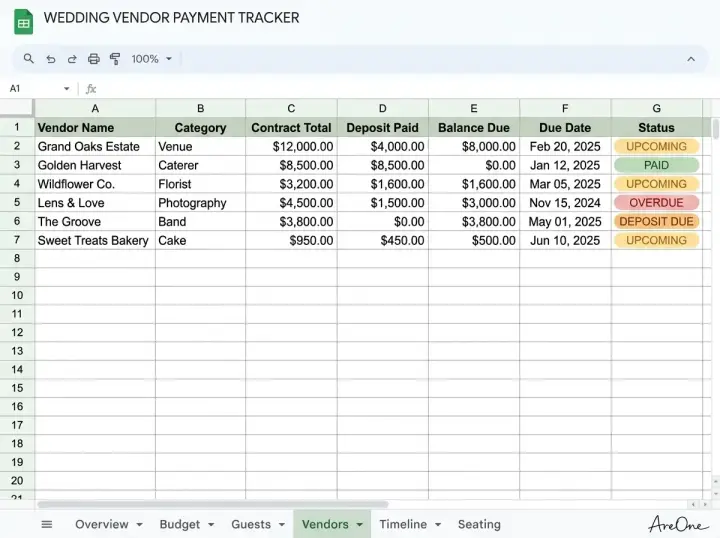
A wedding vendor tracker spreadsheet earns its place the month before the wedding, when several final balances tend to fall due close together. Give the wedding vendor tracker spreadsheet one row per contract, and the formulas warn you before anything slips.
| A: Vendor | B: Service | C: Contact | D: Contract total | E: Deposit | F: Deposit date | G: Paid to date | H: Balance | I: Final due | J: Days left | K: Status |
|---|---|---|---|---|---|---|---|---|---|---|
| [Venue Name] | Venue | [name, phone] | [amount] | [amount] | [date] | [amount] | =D2-G2 | [date] | =I2-TODAY() | =IF(H2<=0,"Paid",IF(J2<0,"Overdue",IF(J2<=14,"Due soon","Open"))) |
The Service column must match a Budget category exactly, because that is how contract totals flow into your budget. Format column J as a plain number so it shows days rather than a date.
Copy-paste example (message to a vendor):
“Hi [Vendor Name], thank you for sending the contract. Before we sign, could you confirm the full payment schedule in writing: the deposit amount, any instalment dates, the final balance due date, and accepted payment methods? We track everything in one sheet and want to make sure nothing arrives late. Thanks, [Your Name].”
This works because it asks for every date at once, in writing, before money changes hands, which gives you exact values for columns E, F and I.
Timeline and day-of schedule tab
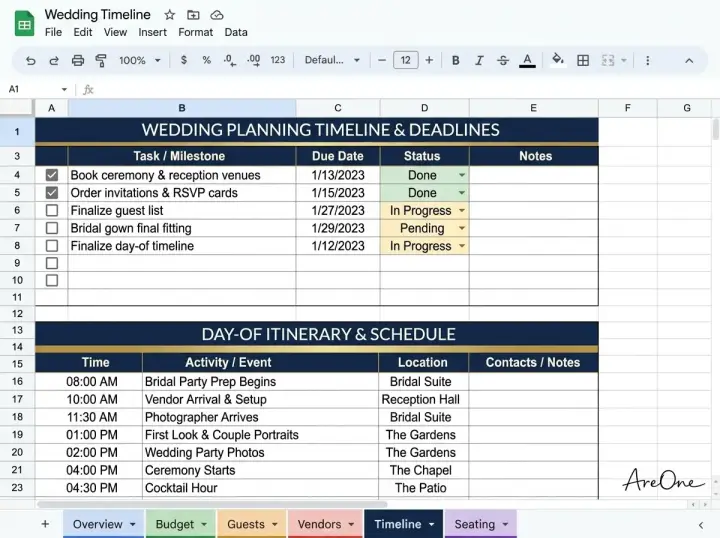
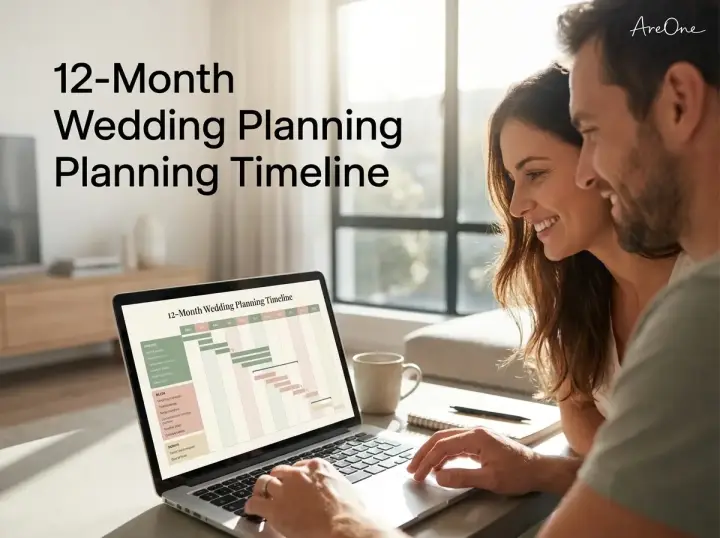
This tab of the wedding planning spreadsheet has two blocks. The first is your task list: A Due date, B Task, C Owner, D Related tab, E Done (Yes or blank), F Days left with =IF(E2="Yes","",A2-TODAY()). Sort by column A and you always see what is next. For which tasks belong in which month, follow our 12-month wedding planning timeline.
Next to it, leave column G empty and build the day-of schedule in columns H to L, so it never mixes with the task count on the Overview tab:
| H: Start | I: Minutes | J: What happens | K: Who | L: Where |
|---|---|---|---|---|
| 2:00 PM | 30 | Guests arrive | Ushers | Garden |
| =H2+I2/1440 | 30 | Ceremony | Officiant | Garden |
| =H3+I3/1440 | 60 | Cocktail hour | Caterer | Terrace |
Dividing minutes by 1440 (the minutes in a day) adds them to a time, so changing one duration shifts every later start time. Format column H as Time.
Seating tab
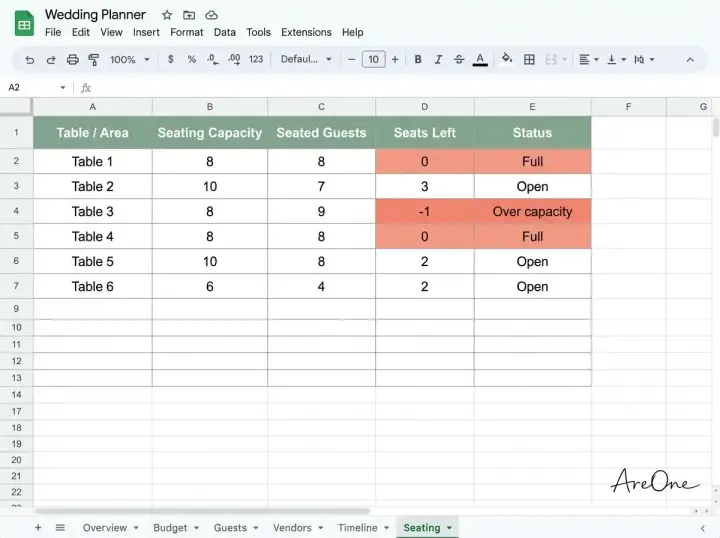
Seating works best once most RSVPs are in. Give each table a number in the Guests tab (column K), and this tab counts who is sitting where.
Need a faster RSVP flow?
Use AreOne to collect guest replies, meal choices, and reminders in one clean workflow.
| A: Table | B: Capacity | C: Seated | D: Seats left | E: Notes |
|---|---|---|---|---|
| 1 | 10 | =SUMIFS(Guests!$J$2:$J$400,Guests!$K$2:$K$400,A2) | =B2-C2 | Head table |
| 2 | 8 | same formula, row 3 | =B3-C3 | Near exit, step-free |
Because the count uses the Attending column, a late “no” frees seats automatically. Add conditional formatting so column D turns red below 0. If you would rather manage seating alongside your invitations, seating is part of AreOne’s Event Pass.
Tips: sharing with a partner, formulas, version control
A shared wedding planning spreadsheet only helps if both of you trust it. These habits keep it trustworthy.
- The wedding planning spreadsheet Google Sheets version is easiest to share: give edit access to your partner, and view or comment access for parents and planners.
- Give each task an owner in the Timeline tab, so nobody assumes the other person did it.
- Protect formula columns (Data > Protect sheets and ranges in Google Sheets; Review > Protect Sheet in Excel).
- Keep one master file. Download a dated .xlsx backup monthly instead of saving copies called “final-v2”.
- Use version history to undo mistakes; Google explains it in Find what’s changed in a file.
- Check the logic of SUMIF in Microsoft’s SUMIF guide before adding new categories.
- Set a weekly 15-minute review together, with the Overview tab open.
Copy-paste example (note for row 1 of the Overview tab):
“How we use this sheet: Grey columns are formulas, please do not type in them. One row per household on Guests. Service names on Vendors must match Budget categories. Ask [Partner A] before deleting any row. Weekly check-in: Sunday, 7 PM.”
Pinning house rules at the top saves arguments later, because the rules were agreed before anyone was tired or stressed.
Common mistakes couples make with a wedding planning spreadsheet
Counting invitations instead of seats
Fifty invitations can mean ninety people. Without a Party size column, catering numbers and the seating plan drift apart quickly.
Tracking only the deposit
Deposits feel like the big moment, but the final balance is what catches couples out. Record the contract total and due date on day one, not just the first payment.
Several copies on several devices
When one partner edits a laptop file and the other a phone copy, both versions become wrong. Work from one shared master.
Mismatched category names
“Photo” on one tab and “Photography” on another breaks SUMIF silently, showing zero. Use a dropdown for Service so the names always match.
A wedding planning spreadsheet that spreads the load
The best wedding planning spreadsheet is not the prettiest one; it is the one where every number flows from a single place, so you spend your evenings dreaming about the day instead of reconciling three lists. Build the six tabs once, let the formulas do the arithmetic, and hand the RSVP chasing to a tool built for it.
Frequently Asked Questions
Find quick answers to common questions about this article.

No approved comments yet.